How I Organize My To-Do List in Todoist With One Hand Free (Maternity Leave Edition)
How I'm Tracking My To-Do's With One Hand Free
If you know me, you know I'm a list-maker. I have been since I was a kid — shopping lists, packing lists, lists of books I want to read, places to visit, restaurants to try. Sometimes I love a list too much. I'll catch myself making a list of my lists, like if I could just itemize the stressful thing enough, it would stop being stressful. It doesn't work like that, but I keep trying.
Over the years I've used a lot of tools to capture and manage all of this — paper, planners, apps, often several at once because no single one quite covers every need. But for the last eight years, my go-to has been an app called Todoist.
It works on your phone and your computer, syncs between them, and at its core it's pretty simple: tasks, dates, labels, priorities. What's kept me coming back isn't the app being fancy. It's that the structure is basic enough to bend into whatever shape your life needs right now.
And right now, my life needs something very different from what it needed a year ago.
Why My To-Do System Looks Different on Maternity Leave
Before maternity leave, my Todoist was doing a lot of work — weekly planning sessions, admin tasks, goals I was actively pushing toward, both professional and personal. It was a real system, tended regularly.
These days, it's scrappier. Simpler. And that's on purpose. I've intentionally slowed things down and let a lot go so I can actually be present for this newborn stretch, instead of half-managing my life from a spreadsheet in my head. (I'll share what my fuller, more structured system looks like in a future post — the one with all the spinning plates. This isn't that one.)
That's worth naming on its own: if and how you track your to-do's should evolve as you do. The system that worked for me pre-baby would be completely wrong for me right now. And the system I'm using right now would've felt too loose for me a year ago, and maybe a year from now too. Neither version is more "correct." They just match different seasons of life.
The Framework Behind My Todoist Setup: Time Sector Thinking
A lot of my thinking here borrows from Carl Pullein's Time Sector System — he has a great YouTube channel if you want to go down that rabbit hole (I did, at 1.5x speed). His core idea is that everything comes down to time: not what you'll do, but when you'll do it.
Pullein timeblocks his calendar by category — content creation, client meetings, workouts, meals — then tags his Todoist items with matching labels. When he's in a given block, he opens that label and knows exactly what to work on. He backs it up with daily, weekly, and monthly reviews to keep things prioritized.
I don't have timeblocks right now. I don't really have a calendar in the traditional sense at all — nobody with a newborn does. But I do have different types of time available to me, even if I can't predict exactly when they'll show up. So I borrowed the logic and simplified how I put it into practice.
My Current Todoist Labels: Solo Time, Computer Time, and Baby Time
The biggest differentiator for me isn't what kind of task something is — it's what kind of me is available to do it, and whether it requires a specific tool, like my laptop.
Right now, that breaks down into three buckets:
Solo time — when I have a stretch to myself
Computer time — when I have access to my laptop, whether or not I'm technically alone
Everything else — which I just assume means I'm with the baby
I've also created a label just for my son, so anything specifically about him stays front and center instead of getting buried in the noise.
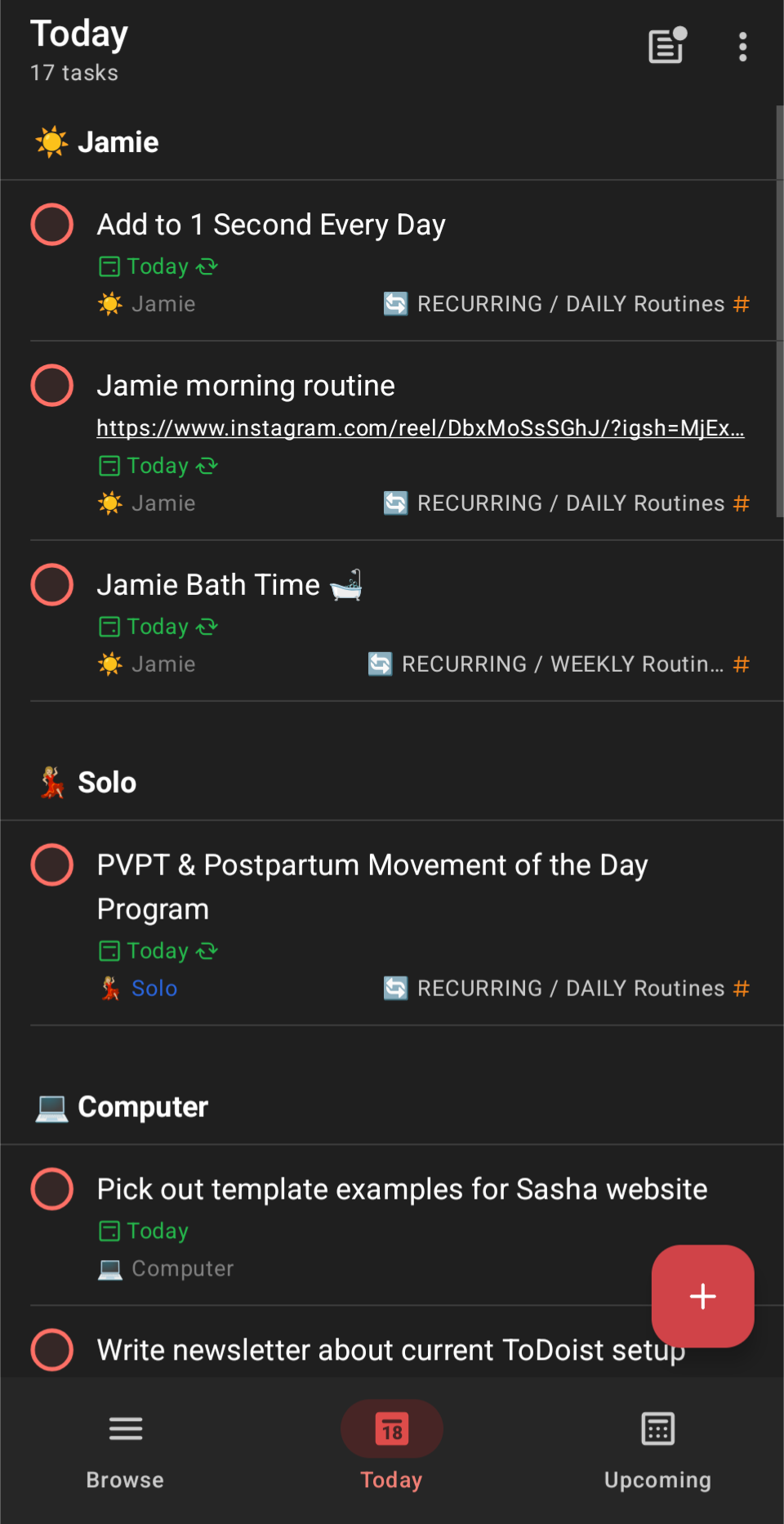
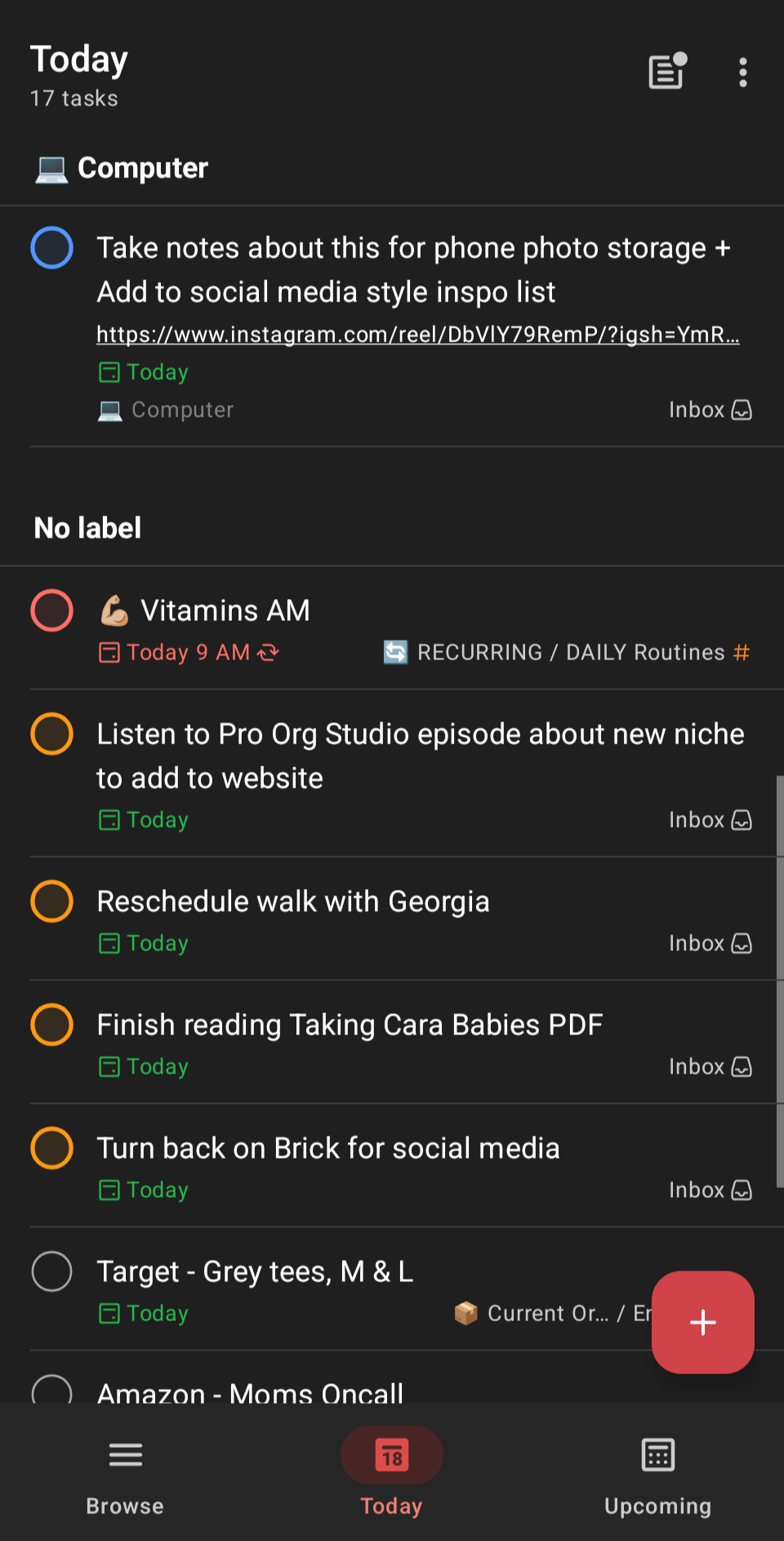
I open the app, go to the Today view, and everything is grouped by label. So the moment I get a pocket of solo or computer time — even just fifteen minutes — I'm not standing there wondering what to do with it. It's already sorted. I can see it instantly.
Using Priority Flags to Rank What Actually Matters
Within each label, I use Todoist's priority flags to rank things further:
P1 (red): Has to happen today
P2 (yellow): Would be really nice, not critical
P3 (blue): Only if it makes sense, or if I need something productive to do while procrastinating
P4 (clear): Technically a backlog flag, but I'll be honest — I rarely touch it. I'm not getting to P4 items right now, so I don't pretend I will.
How Tasks Actually Get Into the System
I started by brain-dumping the recurring stuff and letting Todoist's recurrence feature carry it forward automatically: "Take vitamins every morning." "Give the dog her flea and tick meds on the 7th of the month." Things I don't want to have to think about — I just want them to show up.
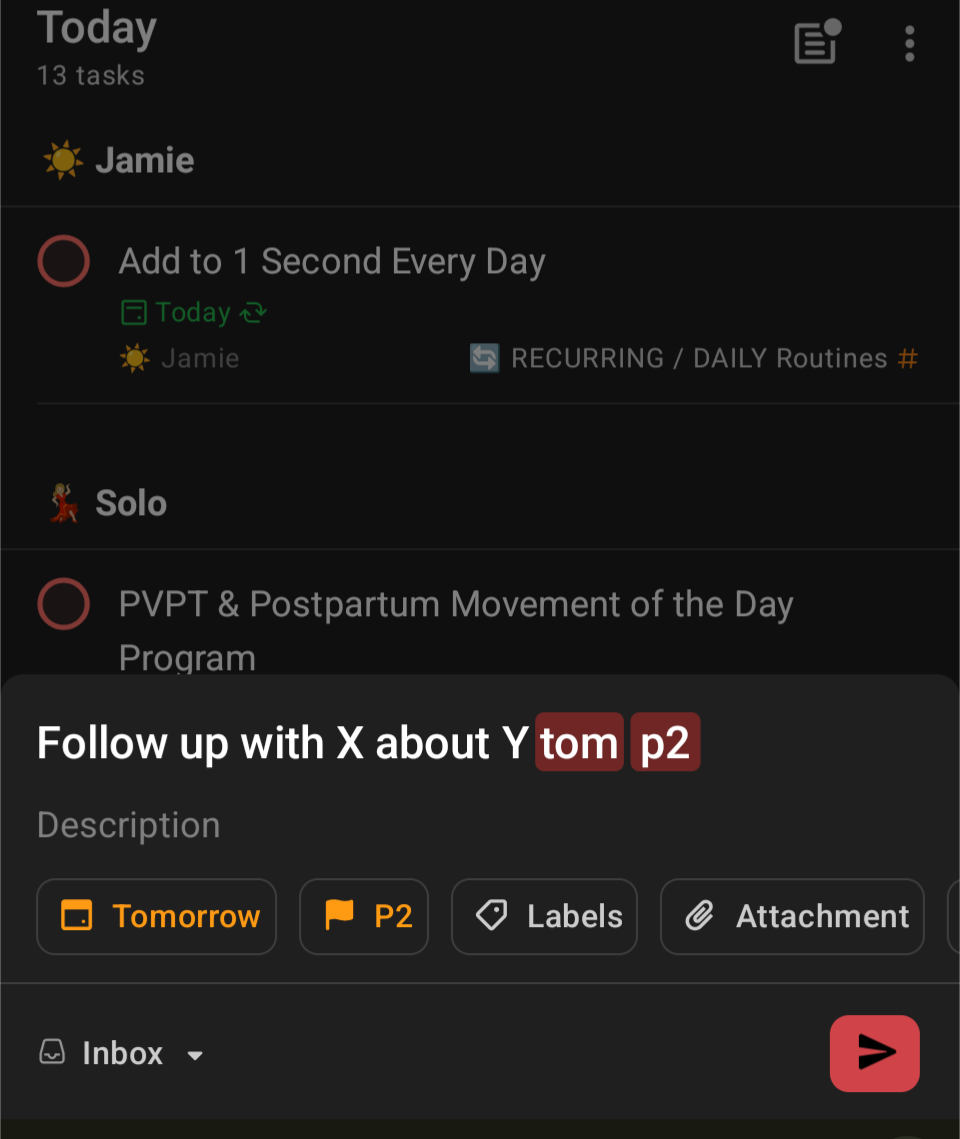
Beyond that, whenever something crosses my mind during the day, I add it on the spot from my phone or laptop. Todoist's natural language processing does a lot of the heavy lifting here — I can type something like "follow up with X about Y tomorrow p2," and it automatically schedules the task for the next day and flags it yellow, with no manual fields to fill in. It's especially good for catching the small stuff that would otherwise evaporate: following up on something sitting on someone else's plate, or a reminder to check in with a friend.
And when I'm mindlessly scrolling my phone anyway, I'll sometimes redirect that energy into the app instead: another quick brain dump, or a pass through existing tasks to reassign dates, labels, or priorities. It makes scrolling feel a little more useful.
How to Build a "Must Do Today" Filter in Todoist
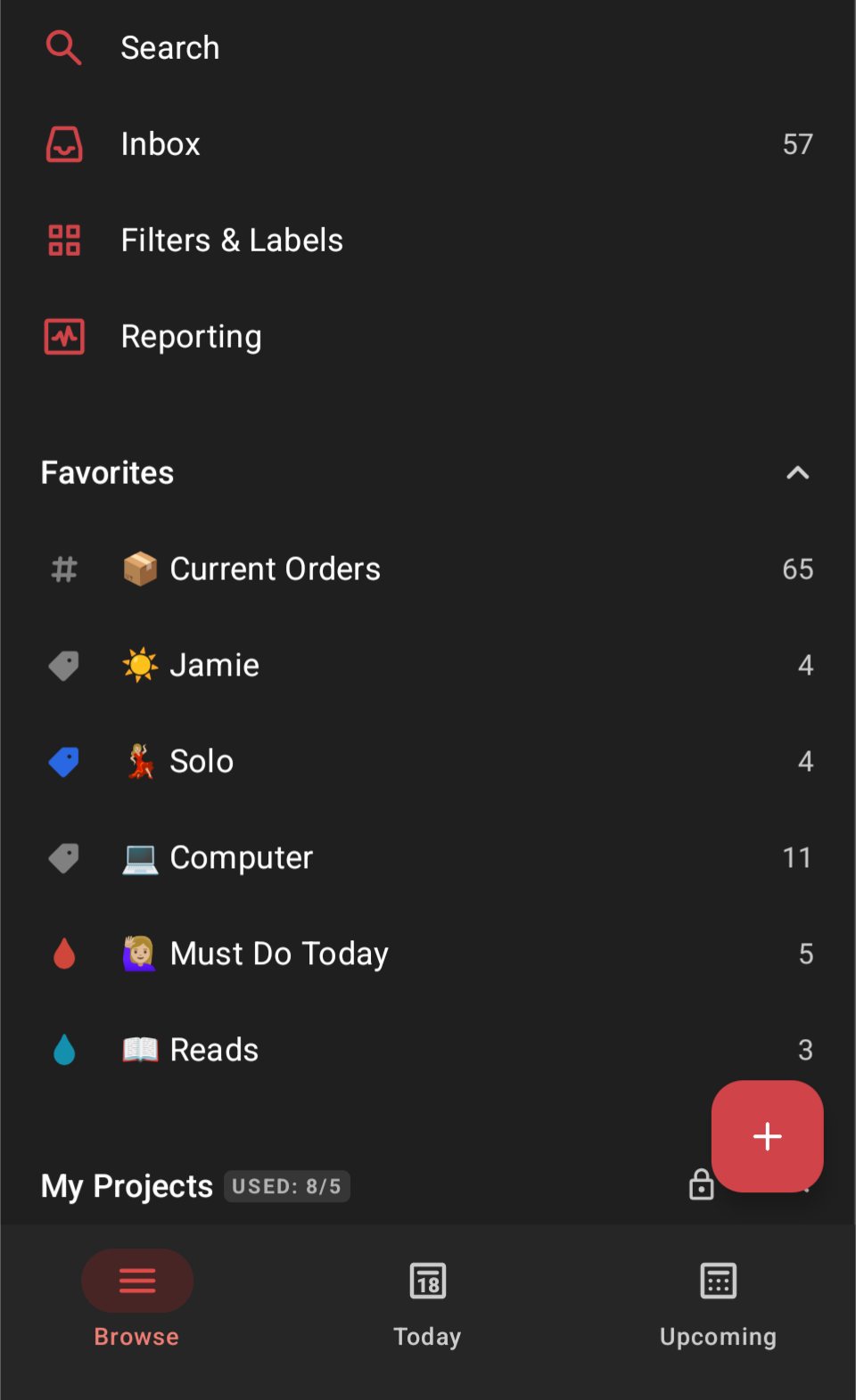
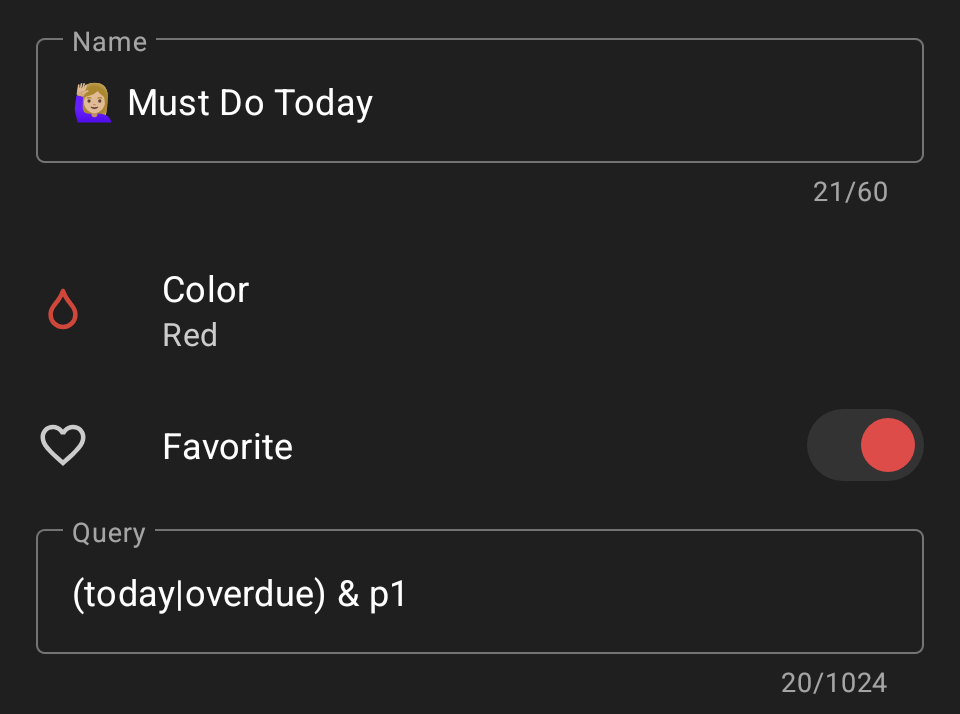
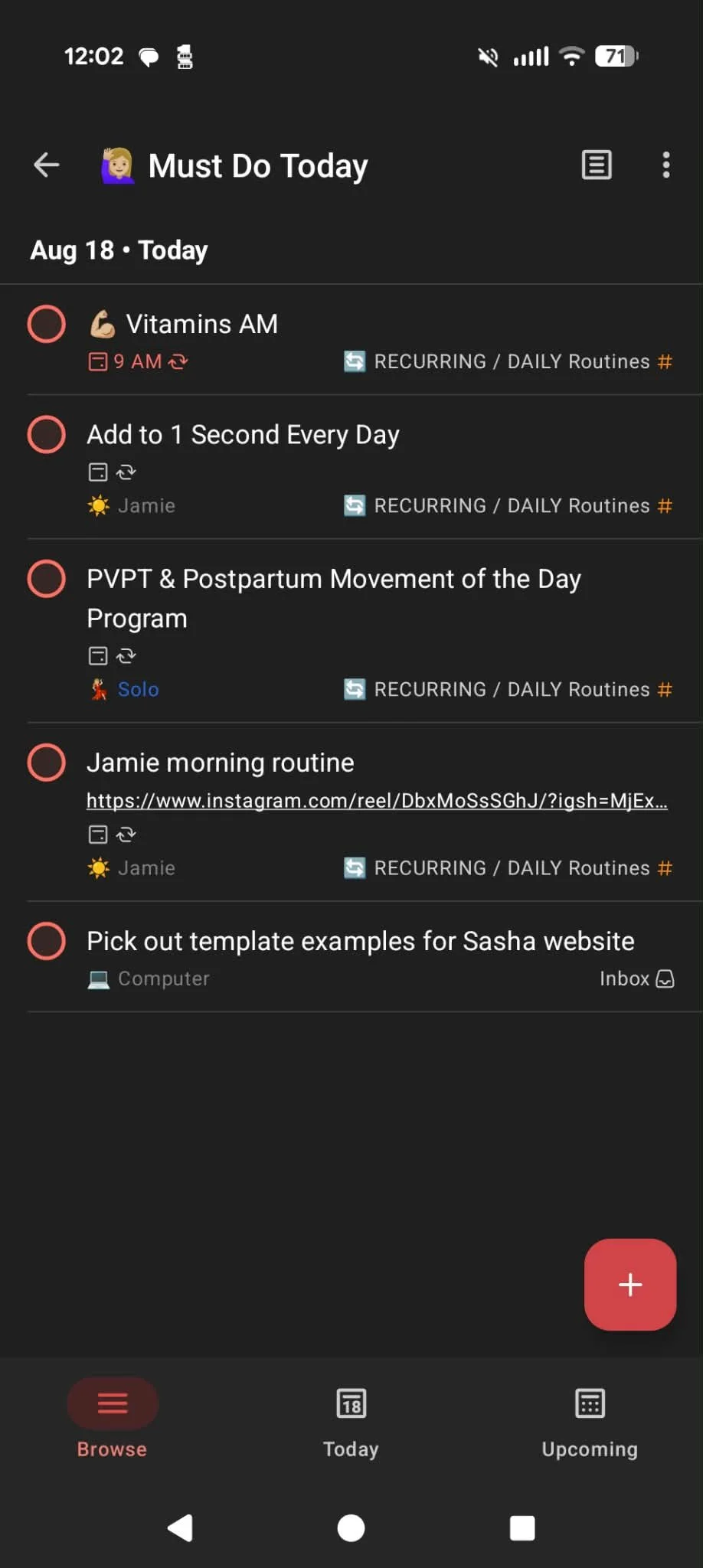
One small addition that's made a real difference is a custom filter I built called "Must Do Today." My Favorites view gives me one-tap access to it, alongside my Solo Time, Computer, and baby labels. It strips away everything except what's due today (or overdue) and flagged P1 — so when the Today list feels loud, this filter cuts straight through it.
Here's how to set it up, and it takes less than a minute:
Open My Filters & Labels from the main menu.
Click the + button next to "My Filters."
Give it a name — adding an emoji makes it more fun to open.
Choose a color.
Toggle on Add to Favorites so it's one tap away instead of buried in a menu.
In the Query field, enter: (today | overdue) & p1
Click Save.
That's it. Now you have a filtered view showing only what's truly due today or overdue and marked P1 — no scrolling past P3s to find what actually matters.
Why This System Works With Low Bandwidth (and One Free Hand)
The whole point of building it this way is that I'm never spending my rare solo minutes deciding what to do with them. That decision already happened earlier, when I had a different kind of bandwidth available. All I have to do in the moment — even one-handed, even half paying attention — is open the app and go.
And because I trust that everything is actually captured in there, I can also do the opposite: close the app, sit down, and do nothing. Not because relaxing made the list, but because I know nothing is quietly slipping through the cracks while I rest. That's still my call to make. I just get to make it on purpose, without any guilt tagging along.
A Note on Todoist's Free Version
Everything described here — labels, priorities, natural language quick-add, custom filters — is doable entirely on Todoist's free version. I didn't pay for a single thing to build this system. There's a paid tier that unlocks more filters and lets you build out more Projects, which is a whole other layer worth exploring if you want something more robust. But for a scrappy, simple setup like mine right now, the free version covers it completely.
Let Go of Holding It All in Your Memory
If you're someone who tries to keep every task, follow-up, and stray idea in your head, and it stresses you out, this is your encouragement to try a different approach. Find an app you actually enjoy opening, or if that's not your thing, a notebook works well too, and it beats loose scraps of paper that scatter and disappear before you ever act on them. The tool matters less than the habit: get it out of your head and into something you trust.
The other half of this is choosing a regular time to actually review what you've captured. A brain dump without a review habit just becomes one more pile you're trying to remember to check. Even five minutes, at the same time each day or week, is enough.
The mental weight this lifts is tremendous. You don't realize how much low-grade energy you're spending trying to hold onto everything until you stop, and suddenly there's just more room.
The Bigger Takeaway
How you track your to-do's isn't supposed to stay fixed forever. It's supposed to change as your capacity changes. Whether that shift is driven by a new baby, a move, a demanding work season, or just needing more mental quiet, the goal is the same: build the structure when you have the bandwidth to build it, so that in the moments when you don't, the decision is already made for you.
Want more of this kind of thing? Subscribe to Use It, Love It, Leave It for free weekly, honest takes on organizing your home, your routines, and your mindset — real systems for real life, not Pinterest-perfect ones.
About the Author
Kari is a Seattle-based professional organizer and certified KonMari Consultant, and the founder of Refine Organizing. She helps clients build home and life systems that flex with real life instead of demanding perfection — drawing on a background in software engineering to bring a systems-first, no-judgment approach to decluttering and organizing.
